Table of Contents
To ensure that staff can easily get to the web client portal page on login without additional steps, you can set the browser’s home page to default to the web client.
Setting the Staff Client as the Home Page in Chrome
Click Menu (the three vertical dots in the upper-right corner).

- Click Settings.
- Click On startup on left side of screen.
Select Open a specific page or set of pages.
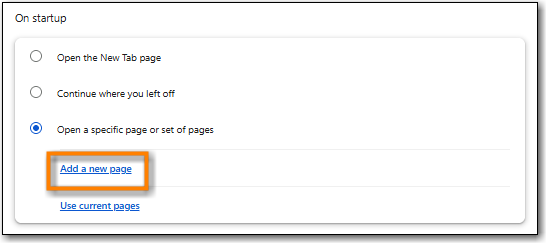
- Click Add a new page.
- Site URL: https://catalogue.libraries.coop/eg/staff/.
Click Add.
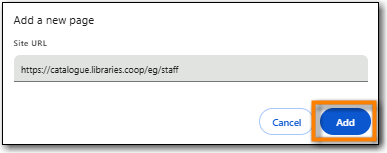
- The staff client login page will be your homepage the next time you open Chrome.

