If you are encountering issues in Evergreen please check the browser console and send any error messages that appear to Co-op Support.
Note
Please read the section called “Guidelines for Support Requests” before submitting your ticket.
Chrome Console Messages:
Click Menu (the three vertical dots in the upper-right corner).

- Select More Tools.
- Select Developer Tools. (This will open a pane on the right-side of your browser.)
- Select the Console tab if it is not opened by default.
- Change the Default levels dropdown to be sure that Verbose is checked.
- Either take a screenshot or copy and paste the text that appears in the console when you see the errors occurring. Be sure to include any of the errors that display in red.
Hatch Extension Console Messages:
- In Chrome, click Menu.
- Click Extensions, then Manage Extensions.
- Click the toggle at the top right of the screen that says Developer Mode.
- Scroll down to Hatch Native Messenger.
- Click on the link that says service worker. (This will open a new window.)
- Select the Console tab.
- Change the Default levels dropdown to be sure that Verbose is checked.
- Either take a screenshot or copy and paste the text that appears in the console when you see the errors occurring. Be sure to include any of the errors that display in red.
Sometimes issues with Evergreen’s staff client are caused by the browser. These issues can sometimes be resolved by clearing your browser cache.
Clear Cache
Click Menu (the three vertical dots in the upper-right corner).
- Click Settings.
- Select Privacy and security.
- Select Delete browsing data.
- Select All time to set the time range.
- Check the box next to Cached images and files .
Click Delete from this device.
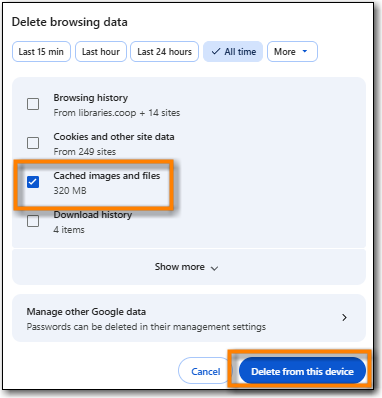
Sometimes issues with Evergreen’s staff client are caused by the browser. If clearing your browser cache doesn’t resolve the issue the next thing to try is clearing your cookies.
Caution
Clearing the cookies will clear all workstations registered to the browser; this clears all workstation settings.
Co-op Support recommends writing down your workstation name before clearing cookies so that you can register with the same workstation name which will preserve your workstation settings.
Clear Cookies
Click Menu (the three vertical dots in the upper-right corner).
- Click Settings.
- Select Privacy and security.
- Select Delete browsing data.
- Select All time to set the time range.
- Check the box next to Cookies and other site data.
Click Delete from this device.
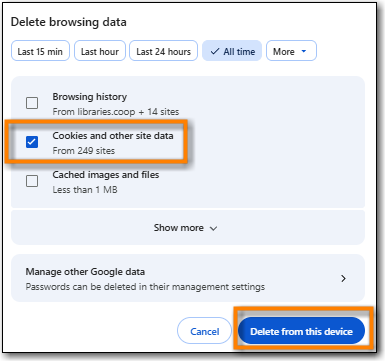
- Return to https://catalogue.libraries.coop/eg/staff
- You will need to register a workstation. See the section called “Registering a Staff Workstation”.
If you still experiencing issues after clearing your cookies the next step is to reset your settings for Chrome.
Reset Settings
Click Menu (the three vertical dots in the upper-right corner).
- Click Settings.
- Click Reset Settings from the left hand side.
- Click Restore settings to their original defaults.
- Click Reset settings.
- Return to https://catalogue.libraries.coop/eg/staff
- You will need to register a workstation. See the section called “Registering a Staff Workstation”.
If you still see a blank page with the green bar across after clearing your cookies and resetting your settings the next step is to delete the offline database.
- Navigate to https://catalogue.libraries.coop/eg/staff
Click Menu (the three vertical dots in the upper-right corner).
- Click More tools.
- Click Developer tools.
- Switch to the Application tab (you may need to click on the double arrow so see all the tabs).
- Expand the Indexed DB section.
- Click on the offline - https://catalogue.libraries.coop section.
Click the Delete database button.
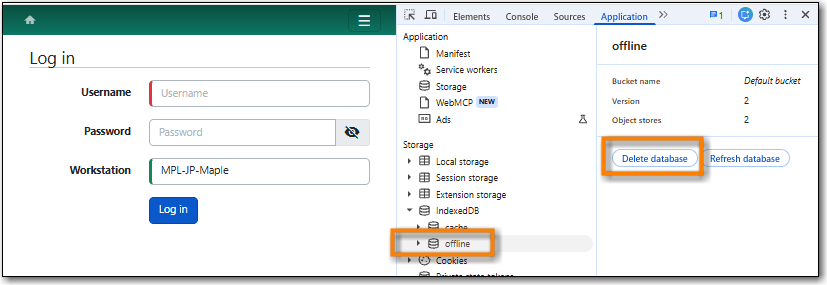
- Click the X in the upper-right corner of the section to close the tool frame.
If you have Hatch installed, use these directions to reconnect your browser to Hatch after clearing your cache or deleting the offline database.
- Reconnect your browser to Hatch
- Log in with a Local System Administrator account.
- Register workstation and click Use Now to log in again.
- Navigate to Administration → Workstation → Print/Storage Service ("Hatch").
- Select Use Hatch For Printing.
- Click on the Home icon.
- You will be returned to the workstation registration screen again - click Use Now to log in again.
- Your local settings should now be restored.

