Sometimes holdings need to be moved to a different bibliographic record or items need to be moved to a new existing call number. Transferring these holdings enables them to be moved without losing circulation data, as would happen if the holding was deleted and recreated on the new record.
Note
For multi-branch libraries, if you wish to permanently transfer holdings between branches this should be done by updating the item attributes for Circulating Library and Owning Library. See Chapter 20, The Holdings Editor for more information.
If you wish items to float between your branches, rather than permanently transferring them, please contact Co-op Support for assistance in setting up floating.
Holdings may need to be transferred if the bibliographic record they are attached to doesn’t match the item in hand or if there is a better record in the catalogue that could be used instead.
Tip
In cases where there’s a better record, cataloguers with sufficient cataloguing knowledge should assess whether the two records should be merged together instead of transferring the holding. Merging reduces duplication in the catalogue and all libraries with holdings attached get the benefit of the better record.
See the section called “Merging Bibliographic Records” and Sitka’s Cataloguing Policy to determine if merging is appropriate.
- Find the record you would like to move your holdings to.
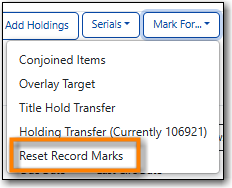
From the Mark for drop down menu, select Holding Transfer.

A confirmation message reading Holding Transfer Target Set will appear at bottom right of the screen.
Note
Once you set a transfer target it will be kept until a new target is marked or the record marks are reset by going to Mark for → Reset Record Marks.
- Retrieve the record that the holdings you would like to transfer are currently attached to.
Click the Holdings View tab and select the call number you want to transfer.

From the Actions menu select Transfer Holdings to Marked Destination.

- The screen automatically refreshes and the selected holdings no longer appear in the grid.
- Manually refresh the record you transferred the holdings to and confirm they now display there as expected.
- Check the original record to see if there are any title holds for your library. If there are follow the instructions in the section called “Transferring Title Holds” to transfer them to the new record as well. Any item or call number level holds will need to be cancelled and re-placed on the new record.
Tip
Evergreen will merge call numbers together if the transferred call number matches a call number for your library on the new record.
You may wish to transfer specific items under one call number to another call number or transfer all items under one call number to a different call number; this can be done within a single record or between records.
Tip
Call number changes within a record can also be done by updating the call number in the holdings editor. See the section called “Holdings Details”.
- Retrieve the record that the call number you would like to transfer to is currently attached to.
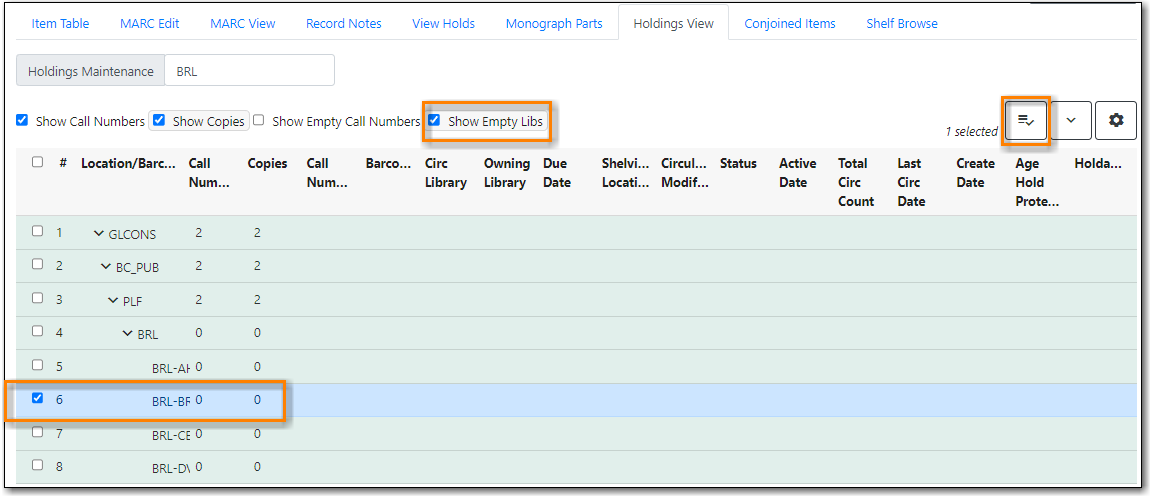
Click the Holdings View tab and select the call number you want to transfer to.

From the Actions menu select Mark Library/Call Number as Transfer Destination.
- If the item you wish to transfer is attached to a different record, retrieve that record.
- Click the Holdings View tab and select the item you want to transfer.
From the Actions menu select Transfer Items to Marked Destination.

- The screen automatically refreshes and the selected item will display under its new call number or no longer appear in the grid if it has been moved to a call number attached to another record.
- Any call number level holds will need to be cancelled and re-placed on the new call number. If the item has been moved between records, check the original record to see if there are any title holds for your library. If there are follow the instructions in the section called “Transferring Title Holds” to transfer them to the new record as well.

