A transit can be cancelled when an item is being erroneously sent to another branch or library.
Whenever possible libraries should use the check in modifier Suppress Holds and Transit to prevent unwanted transits and give library staff time to update the item to prevent it from triggering a transit or resolve whatever needs to be resolved before it can go into transit.
Caution
The option to cancel a transit should be used sparingly and only under some circumstances as it effectively cancels the previous check in. Cancelling a transit affects data integrity and the accuracy of circulation statistics.
As per Interlibrary Connect policy, libraries participating in Interlibrary Connect should only cancel a transit if they own the item and they are unable to send the item to fill a hold at another library.
Select the item you wish to cancel the transit for and from choose Cancel Transits from the Actions menu.
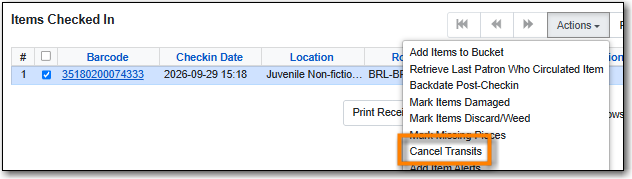
- On the pop-up that appears click OK/Continue to proceed with cancelling the transit.
- The item will now have the status of Canceled Transit. Resolve the reason why the item was being sent into transit in the first place.
Note
If a hold as been cancelled after an item has already been sent into transit to fill the hold, Evergreen will continue to try and send the item to the pickup library.
To resolve this, cancel the transit and then check in the item using the check in modifier Suppress Holds and Transit. The item’s status will update to Reshelving and should behave normally going forward.
- Go to Administration → Local Administration → Transit List.
Check the radio button for Transits From.
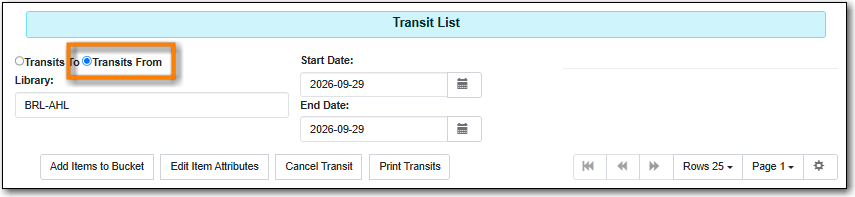
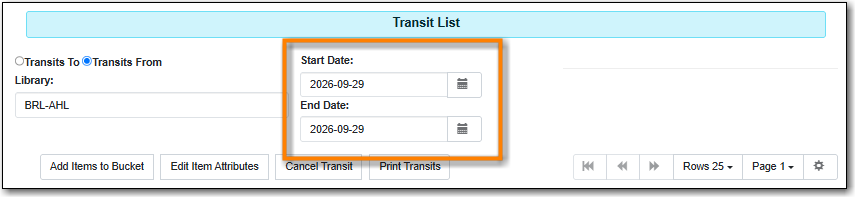
Adjust the start and end date as needed.
Select the transit you would like to cancel and click Cancel Transit.
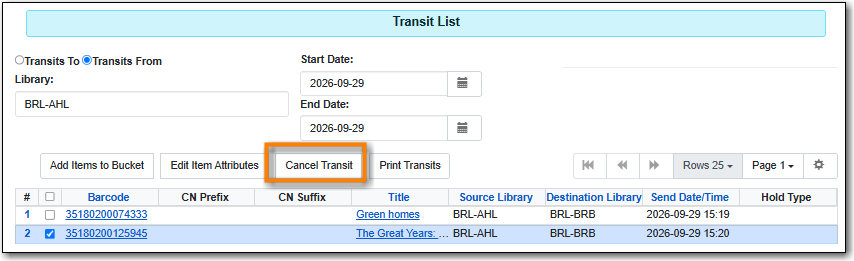
The pop-up that appears will indicate if there are any associate holds. To proceed with cancelling the transit click Cancel Transit.
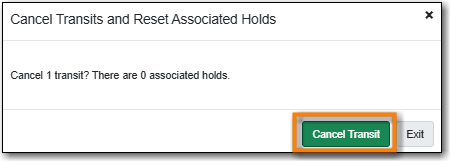
- The item’s status is updated to Canceled Transit. Resolve the reason why the item was being sent into transit in the first place.
Note
If a hold as been cancelled after an item has already been sent into transit to fill the hold, Evergreen will continue to try and send the item to the pickup library.
To resolve this, cancel the transit and then check in the item using the check in modifier Suppress Holds and Transit. The item’s status will update to Reshelving and should behave normally going forward.

