Additional permissions can be granted to library staff in two ways.
Sitka Training Video - Managing Secondary Permission Groups (5:57)
The Reporter View Output Access or Cover Image Upload Access secondary permission groups can be granted to and removed from all library staff accounts as secondary permission groups by local system administrators. For acquisitions secondary permission groups see the section called "Granting Acquisitions Permissions" in Sitka’s Evergreen Acquisitions Documentation.
See the section called “Secondary Permission Groups” for information on specific secondary permission groups.
Caution
The Reporter View Output Access or Cover Image Upload Access groups only function as secondary groups. If one of these is set as the Main (Profile) Permission Group for a library staff account, that account will be unable to login to the staff client.
Libraries can run a report to see which accounts have secondary permission groups assigned to them. See the section called “Staff Assigned to Secondary Permission Groups” for information on running this report.
Sitka Snippet Video - Granting Secondary Permission Groups (1:35)
- Open the account of the library staff account you wish to grant a secondary permission group to.
- Go to the Edit tab.
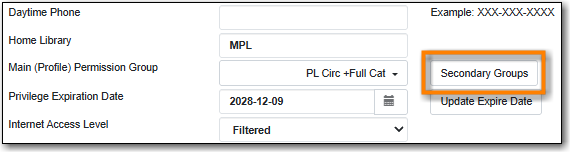
To the right of the Main (Profile) Permission Group field click Secondary Groups.
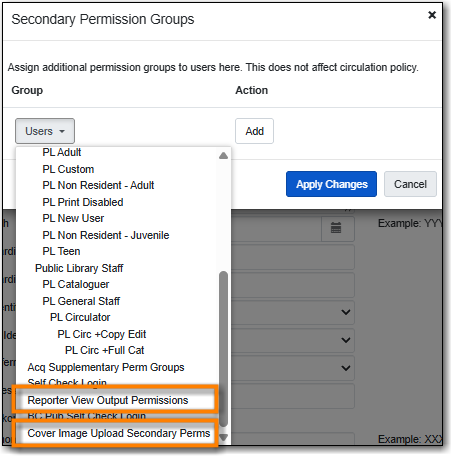
From the drop down menu select Reporter View Output Permissions or Cover Image Upload Secondary Perms.
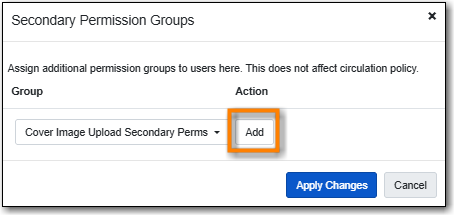
Click Add.
Click Apply Changes.
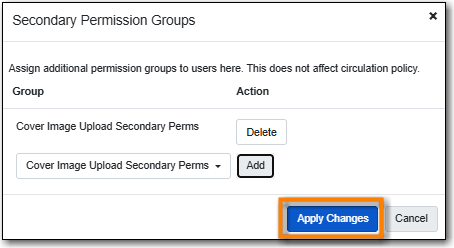
- You do NOT need to click Save in the patron account.
Sitka Snippet Video - Removing Secondary Permission Groups (1:39)
- Open the account of the library staff account you wish to remove a secondary permission group from.
- Go to the Edit tab.
To the right of the Main (Profile) Permission Group field click Secondary Groups.
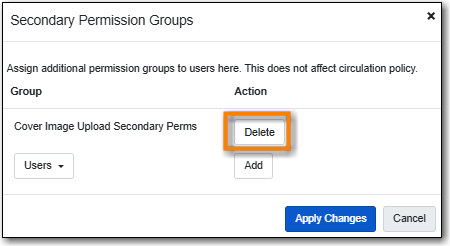
Click Delete beside the permission group you would like to remove.
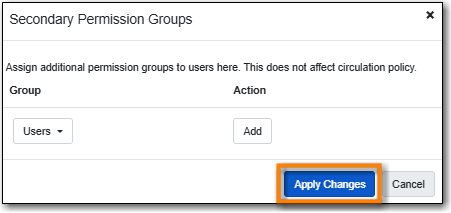
Click Apply Changes in the pop-up.
- You do NOT need to click Save in the patron account.
Local System Administrators may selectively grant additional permissions available to local system administrator accounts to other non-local system administrator accounts.
- Log in to Evergreen with a local system administrator account.
- Find the staff account in the User Permission Editor. You may search for the patron account, then go to Others → User Permission Editor, or go to Administration → User Permission Editor and search for the account by barcode.
- When the User Permission Editor is loaded, scroll down the permission list to find the desired permission.
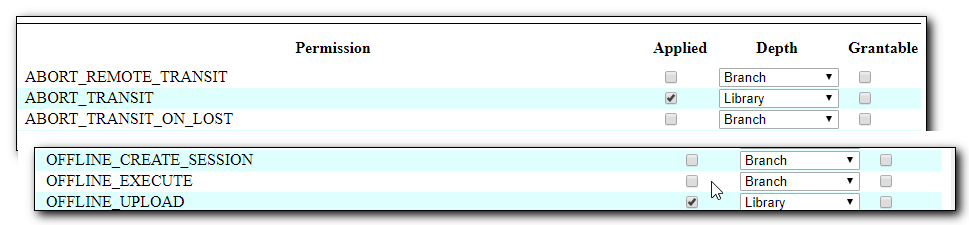
- Select the checkbox in Applied column.
Scroll down to the bottom to click Save.
Tip
- Permission: List of permission names. For help correlating permissions to specific Evergreen functions please contact Co-op Support.
- Applied: If checked the permission is granted to this account.
- Depth: limits application to the staff member’s library and should be left at the default. Evergreen blocks attempts to set Federation- or Sitka-wide privileges.
- Grantable: If checked this staff account will be able to grant the new privilege to other accounts (not recommended).

