Table of Contents
Caution
Make sure your browser allows Evergreen to open pop-ups or the Holdings Editor will not appear. See the section called “Browser Configuration”.
Co-op Support recommends all cataloguers adjust their Holdings Editor Preferences and set up holdings templates before starting to add holdings.
Detailed information on the Holdings Editor can be found in the section called “Holdings Editor”.
Sitka Training Video - Adding Holdings (2:05)
Search the catalogue for a record that matches the item in hand, as described in Chapter 19, Searching the Database for Cataloguing Purposes.
- If you do not find a match, refer to the section The Cataloguing Workflow in Sitka’s Evergreen Policy & Best Practices Manual for next steps.
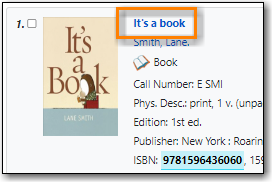
Click on the title link to open the record.
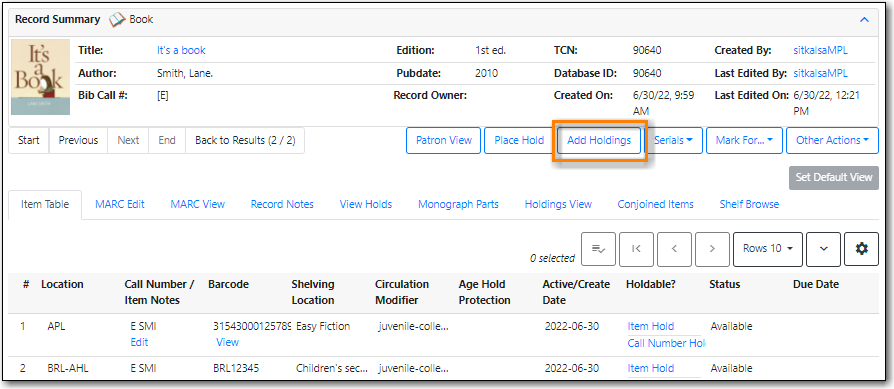
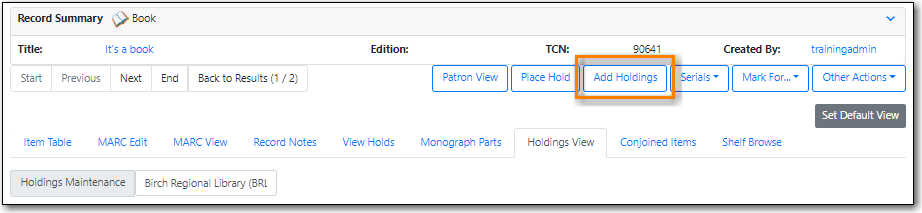
Click Add Holdings.
The Holdings Editor will open up in a new tab. Depending on your saved preferences you will see either the Unified Holdings and Item Attributes Display or separate tabs for Holdings and Item Attributes.
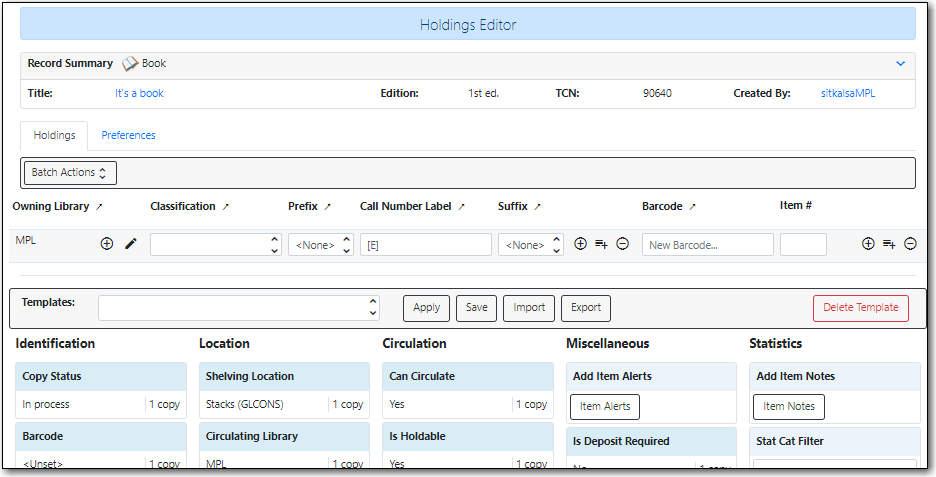
Complete the required fields for both the call number and item records.
- By default, a new item has In Process status, unless you choose a different one when creating it. Item must be checked in to become Available and to create item’s Active Date.
- Refer to the section called “Item Attributes” for information about individual attributes in an item record.
- To ensure data consistency, we recommend using holding templates. Select one from the drop down list, then click on Apply Template. Refer to the section called “Holdings Templates” for more information on creating holding templates.
If you would like to print a spine or pocket label for the item, check the box for Print Labels?.

- Once done, click on Apply All, Save & Exit. If printing labels the Item Label interface will open otherwise the pop-up tab is closed.
- Your item will now display in the catalogue.
Search the catalogue for a record that matches the item in hand, as described in Chapter 19, Searching the Database for Cataloguing Purposes.
- If you do not find a match, refer to the section The Cataloguing Workflow in Sitka’s Evergreen Policy & Best Practices Manual for next steps.
Click on the title link to open the record.
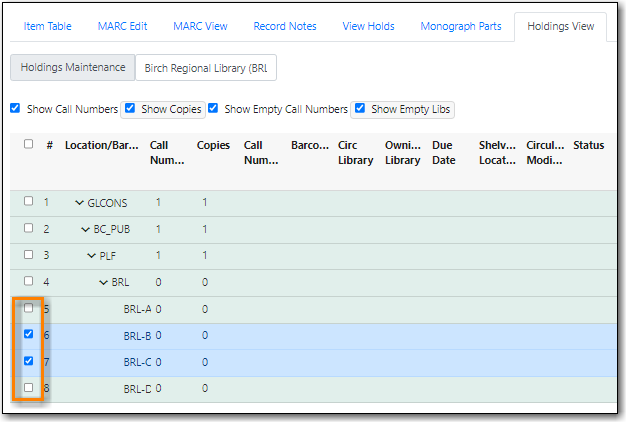
Go to the Holdings View tab and select the branches you’d like to add items to.
Tip
Make sure both the Show Empty Call Numbers and Show Empty Libs checkboxes are selected in order to display branches without items on the library list.
If you don’t select a branch, the default owning and circulating library is set to your workstation location.
Click Add Holdings.
The Holdings Editor will open up in a new tab. Depending on your saved preferences you will see either the Unified Holdings and Item Attributes Display or separate tabs for Holdings and Item Attributes.
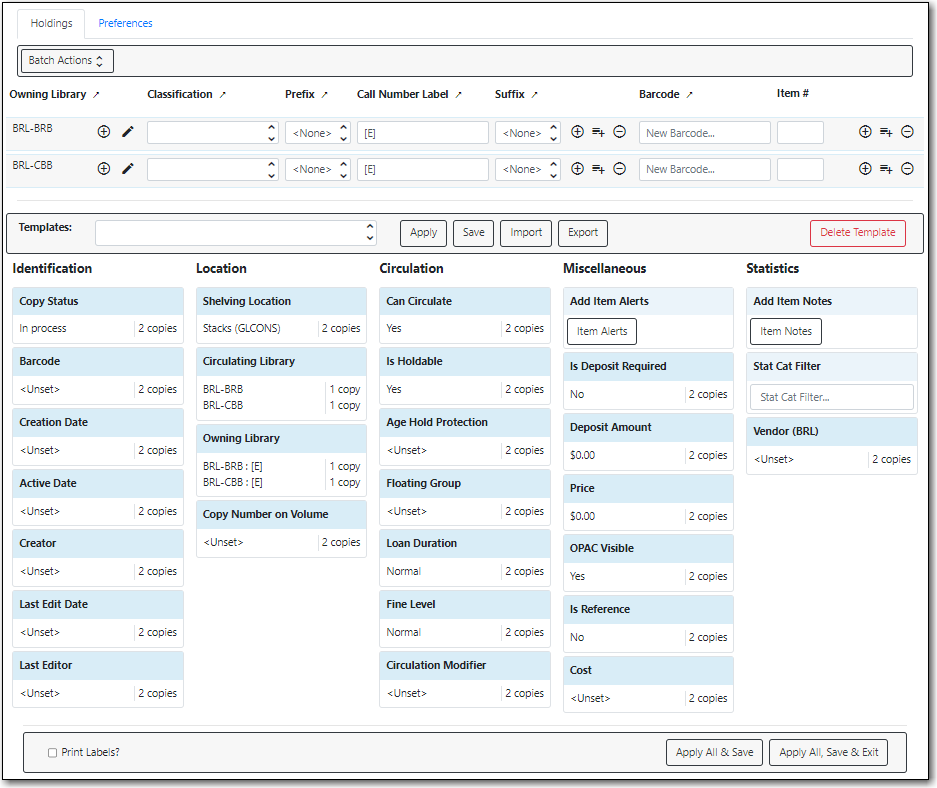
Complete the required fields for both the call number and item records.
- By default, a new item has In Process status, unless you choose a different one when creating it. Item must be checked in to become Available and to create item’s Active Date.
- Refer to the section called “Item Attributes” for information about individual attributes in an item record.
- To ensure data consistency, we recommend using holding templates. Select one from the dropdown list, then click on Apply. Refer to the section called “Holdings Templates” for more information on creating and using holding templates.
If you would like to print spine or pocket labels for the items, check the box for Print Labels?.
- Once done, click on Apply All, Save & Exit. If printing labels the Item Label interface will open otherwise the pop-up tab is closed.
- Your items will now display in the catalogue.

