Holds can be cancelled in numerous ways by patrons, library staff, and Evergreen.
Patrons can cancel their own holds through the Items on Hold interface in My Account in the public catalogue.
Library staff can cancel holds for patrons through the Open Holds Requests tab in a patron’s account, the Holds View tab in the staff catalogue, the Holds Pull List, the Hold Shelf, and the Hopeless Holds interface.
Caution
Libraries participating in Interlibrary Connect should NEVER cancel a hold if the pick up library is not their own.
If a library deletes the last holding from a record, Evergreen will automatically delete the bibligraphic record and any holds associated with it including ILC holds. A warning is given to the staff member deleting the item if there are holds but Evergreen does not alert other libraries that have holds associated with the record.
Co-op Support recommends libraries run a report to catch holds cancelled by Evergreen in this way. The template Monthly Cancelled Holds List with Cancelation Cause can be run as needed or set up as a monthly recurring report. These holds will show with a cancel reason of Untargeted expiration.
Staff can manually cancel holds for patrons in the staff client through the Open Holds Requests tab in a patron’s account, the Holds View tab in the staff catalogue, the Holds Pull List, the Hold Shelf, and the Hopeless Holds interface.
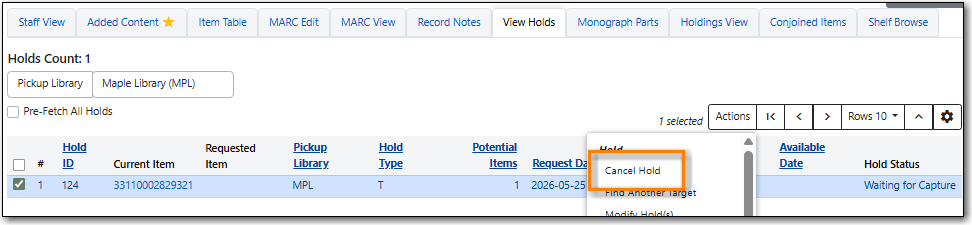
- In the interface of your choice, select the hold(s) you wish to cancel.
Go to Actions → Cancel Hold.
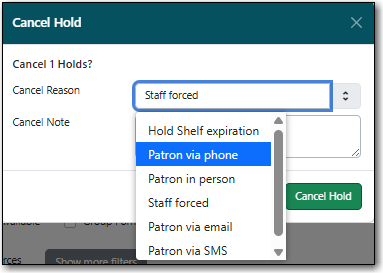
Choose the appropriate cancel reason from the drop down menu. If cancelling multiple holds at once the same cancel reason will be used for all.
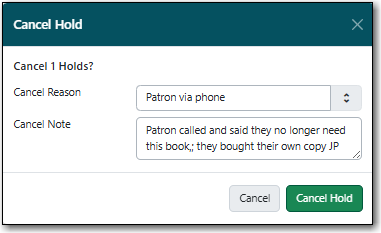
Enter a note if applicable.
Caution
If your library has the Holds Cancelled by Staff notification enabled anything entered into the Notes field when cancelling a hold appears as the Cancel Cause in the email sent to the patron.
Click Cancel Hold.
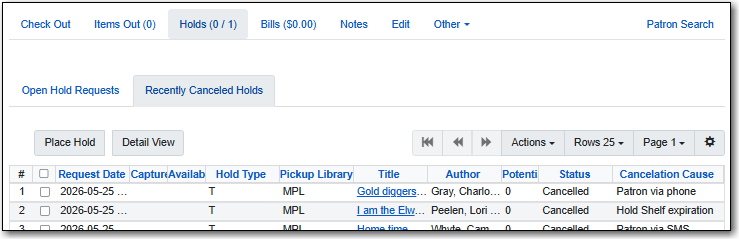
The hold is now cancelled and appear on the Recently Canceled Holds tab in Holds within the patron’s account.
The hold will also appear in the Holds History interface in My Account in the public catalogue if the patron has opted into saving their holds history.
- If the item was on the holds shelf it needs to be checked in. The item will go into Reshelving or be captured to fill the next hold.
Note
Patrons can cancel their own holds via My Account.
Library staff can also cancel a set of holds placed for a particular hold group.
- Go to Circulation → Hold Groups.
From the Hold Groups tab, double-click the hold group you wish to open.
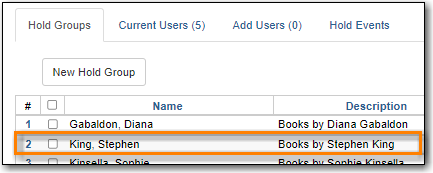
The group will be opened on the Current Users tab. Click on the Hold Events tab.
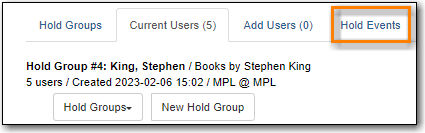
- Select the set of holds you wish to cancel.
Click Actions → Cancel hold group event.
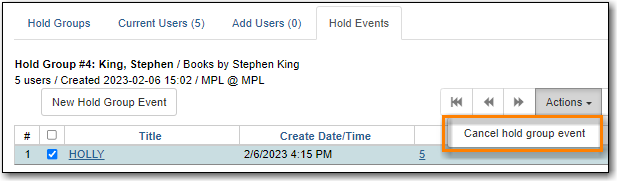
- Click OK/Continue.
- All holds in the set are cancelled.
- If an item was captured for one of the holds and on holds shelf, check it in. The item will go into Reshelving or be captured to fill the next hold.
Cancel reasons, also called cancel causes, show why a hold was cancelled. When holds are manually cancelled, staff can include a note to further explain the circumstances around the cancellation.
Staff can apply the following cancel reasons manually when cancelling a hold through the Open Holds Requests tab in a patron’s account, the Holds View tab in the staff catalogue, the Holds Pull List, the Hold Shelf, or the Hopeless Holds interface:
- Hold shelf expiration - This hold reason can be used if the hold is not picked up from the holds shelf in the time alloted.
- Staff forced - This hold reason can be used if staff need to cancel a patron’s hold, such as when the library no longer owns a local item that can fill a hold and so needs to place a hold via Interlibrary Connect instead.
- Patron via phone - This hold reason can be used if the patron calls the library to cancel their hold.
- Patron in person - This hold reason can be used if the patron comes into the library to cancel their hold.
- Patron via email - This hold reason can be used if the patron emails the library to cancel their hold.
- Patron via SMS - This hold reason can be used if the patron sends an SMS message to the library to cancel their hold.
Evergreen will apply the following cancel reasons when a particular action is performed in Evergreen:
- Hold shelf expiration - Evergreen applies this hold reason when holds are cleared from the hold shelf using the Clear These Holds button.
- Untargeted expiration - Evergreen applies this hold reason when the last item that could fill the hold is deleted and the associated bibliographic record is automatically deleted.
- Patron via OPAC - Evergreen applies this hold reason when a patron via cancels a hold via My Account in the public catalogue.
- Patron via SIP - Evergreen applies this hold reason when a hold is cancelled via a 3rd party product that authenticates with Evergreen via SIP.
- Hold Group Event rollback - Evergreen applies this hold reason when a hold is cancelled via Hold Groups.

